Clean Install
How to perform a clean install of BeamNG.drive on Steam, Humble Bundle or Epic Games Store, and how to back up your files first.What is Clean Install?
Clean install is a complete removal of the game from your PC. Clean install is useful for removing any broken or corrupted files.
This includes:
- Game files
- User files (such as mods, settings etc)
When do I need to do a Clean Install?
- The game doesn’t launch
- The game works incorrectly or is unstable
- Game files were corrupted by mods
How do I perform a Clean Install?
Before deleting the user folder, make a backup of any important files you may want to keep first.
You can back up your user folder by copying it to another location or renaming it, for example
BeamNG.drive_backupSteam
- Uninstall BeamNG.drive from Steam Library
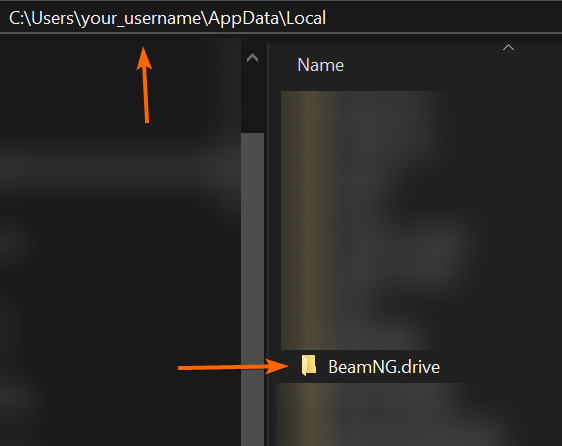
- Find and delete your BeamNG.drive user folder.
How to find your user folder:
- Navigate to
C:\Users\your_username\AppData\Local\BeamNG\BeamNG.drive(this is the default location) - If your user folder is located in a different place, please navigate there instead

- Navigate to
- Delete the BeamNG.Drive folder:
- By default it’s located here:
C:\Program Files (x86)\Steam\steamapps\common - Right click on
BeamNG.drivefolder and selectDelete - If you changed your folder location, please navigate there
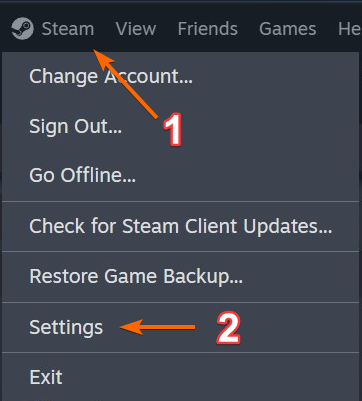
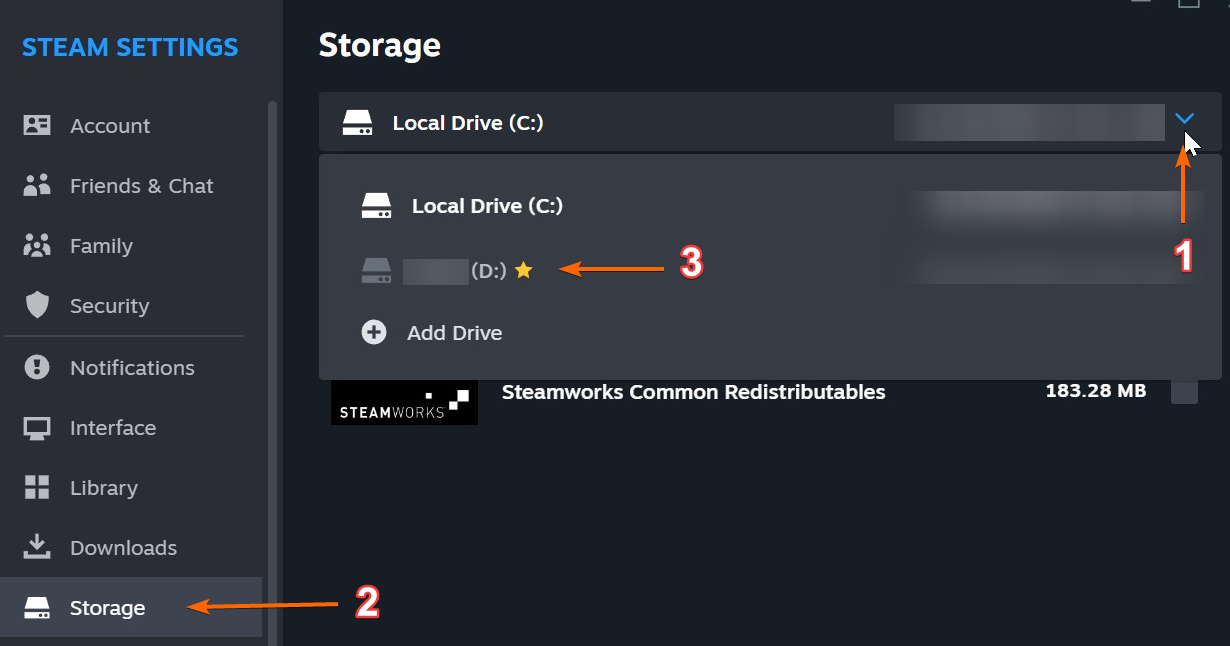
- Open Steam -> Settings

- Navigate to
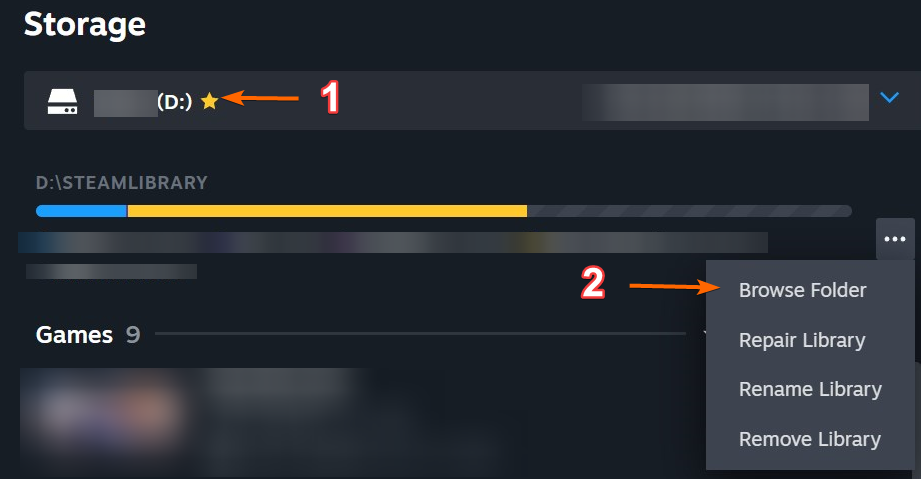
Storageand find the disk with your games
- Click on
°°°button and selectBrowse Folder
- Right click on
BeamNG.drivefolder and selectDelete
- Open Steam -> Settings
- By default it’s located here:
- Reinstall BeamNG.drive
- If you experience any issues please check this article
Humble Bundle
- Remove BeamNG.drive from your PC
- Find your game folder location
- Right click on
BeamNG.drivefolder and selectDelete
- Find and delete your BeamNG.drive user folder.
How to find your user folder:
- Navigate to
C:\Users\your_username\AppData\Local\BeamNG\BeamNG.drive(this is the default location) - If your user folder is located in a different place, please navigate there instead
- Navigate to
- Re-download the game from your Humble Bundle account / order page
- If you downloaded the zip, please make sure to unpack it
- If you activated the game in Steam, please check instructions above

- Reinstall BeamNG.drive

Epic Games Store
- Uninstall BeamNG.drive from Epic Game Store Library
- Find and delete your BeamNG.drive user folder.
How to find your user folder:
- Navigate to
C:\Users\your_username\AppData\Local\BeamNG\BeamNG.drive(this is the default location) - If your user folder is located in a different place, please navigate there instead
- Navigate to
- Delete the BeamNG.Drive folder:
- Navigate to your game location folder
- Right click on
BeamNG.drivefolder and selectDelete
- Reinstall BeamNG.drive
- If you experience any issues please check this article
Last modified:
December 28, 2018
Was this article helpful?
More in “Support tools”
All articles →
Safe ModeHow to start BeamNG.drive in Safe Mode from the launcher to check whether mods or settings cause crashes, and what to do next.
Clear CacheHow to clear the BeamNG.drive cache in the launcher (Support Tools > Clear Cache) to fix broken textures, maps that won't load and mod issues.
Verify IntegrityHow to verify BeamNG.drive game files in the launcher, Steam or Epic Games Store, and reinstall the Humble Bundle version, to fix corrupted files.
Gathering Logs (Support ID)What a Support ID is, how to collect your BeamNG.drive logs (launcher logs, DxDiag, game logs, mods list) and why support asks for it.
How to report issuesHow to report a bug, crash or other problem in BeamNG.drive: what to check first (Safe Mode, Known Issues), crash reports, forum reports and contacting support.
TroubleshooterExplore our step-by-step troubleshooting guide.