OpenXR runtime guide: how to choose a default OpenXR runtime for VR
What is an OpenXR runtime and which one to use for BeamNG.drive VR: Meta/Oculus, SteamVR, VirtualDesktop, PimaxXR, WMR. How to set the default OpenXR runtime.This article is part of Virtual Reality.
OpenXR runtime guide
In layman’s terms, OpenXR is a language (an ‘API’) used by VR software and VR hardware to communicate with each other.
BeamNG software speaks the OpenXR API when talking to your VR headset. Most VR headsets are compatible with the OpenXR API standard one way or another.
An OpenXR runtime is the software that allows communication between our sim and your VR headset.
Making an analogy, an OpenXR runtime is to OpenXR apps, what an image viewer is to image files.
There are several OpenXR runtimes:
- Manufacturer-specific runtimes: some VR manufacturer provide their own official OpenXR runtime. This is a light and performant solution. Some examples: Oculus/Meta, VarjoOpenXR, ViveOpenXR, etc.
- SteamVR runtime: compatible with the vast majority of VR headsets, it provides convenient additional features. In some cases, SteamVR runtime may run alongside the manufacturer’s official runtime, increasing resource use (such as higher VRAM use, and possibilty lower framerates).
- Third party runtimes: the community of VR developers has built other OpenXR runtimes which can provide better compatibility / additional features / better performance / improved visual quality. Your mileage may vary. Some examples: VirtualDesktop-OpenXR, PimaxXR, OpenXR-Vk-D3D12, etc.
Note: some VR headsets do not natively speak the OpenXR API. If that’s your case, check if the community of VR developers has created an unofficial third party OpenXR runtime for it.
Here’s an overview of the most common OpenXR runtimes:
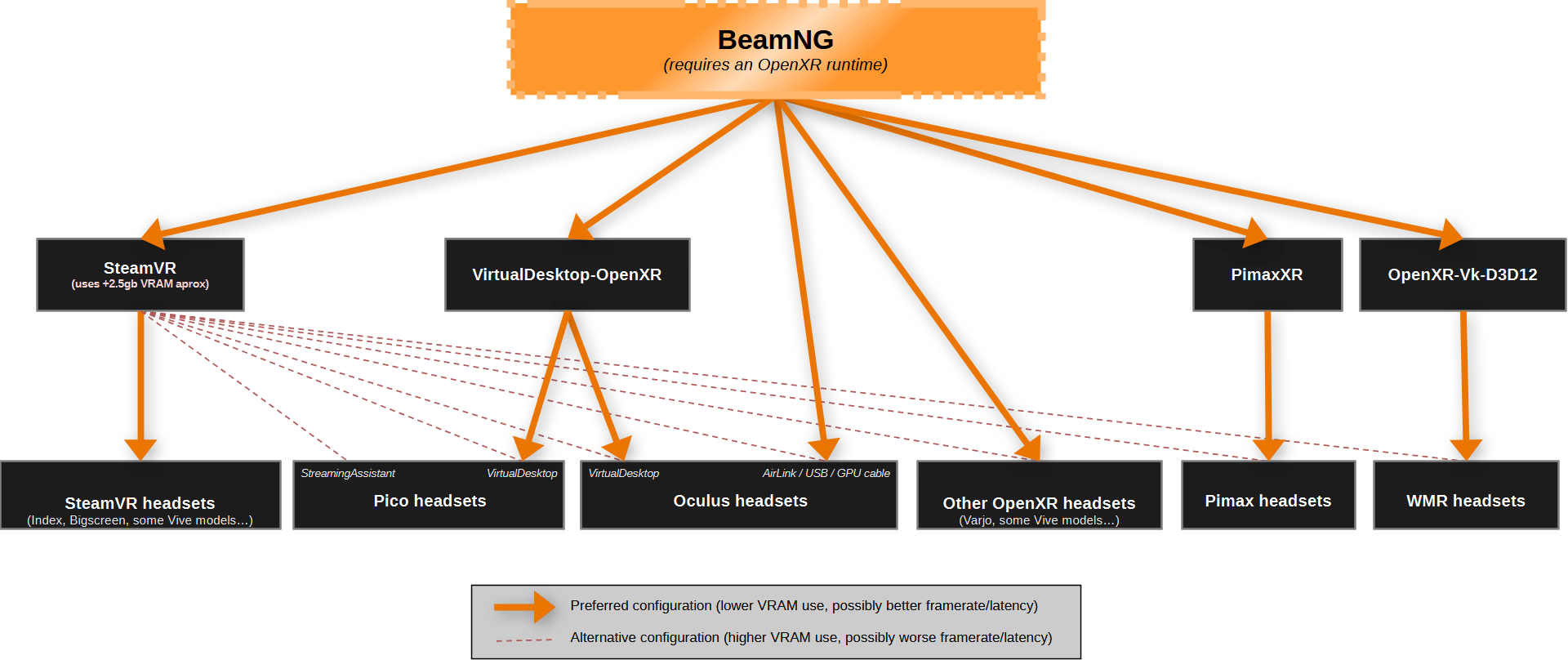
( contact us for diagram corrections/feedback)
Choose a default OpenXR runtime
Continuing the previous analogy: just like you configure a default image viewer in your computer, you should also choose a default OpenXR runtime:
- Meta/Oculus runtime: open the Meta software window > Settings > General > OpenXR runtime > Set Meta Quest Link as active.
- SteamVR runtime: open the SteamVR window > ☰ icon > Settings > OpenXR > Set SteamVR as OpenXR runtime.
- Other runtimes: please check their documentation.
Note: higher VRAM use can have a huge negative impact in framerate (for example, dropping from perfectly playable framerates, down to 0-5fps). Keep that in mind when choosing a runtime.
Was this article helpful?