Dedicated Graphics
Laptop with two GPUs? How to make BeamNG.drive use the dedicated graphics card instead of integrated graphics in Windows 10 and 11.Some computers have two graphics cards. This happens often in laptops, where one of them is a low-power, energy-saving, integrated graphics card; while the other is a much faster, power-hungry, dedicated graphics card.
This page will guide you on using your laptop dedicated graphics in BeamNG.drive to get better performance.
Windows Settings
Windows selects which GPU will be used. You can select the necessary GPU for the game in Windows options.
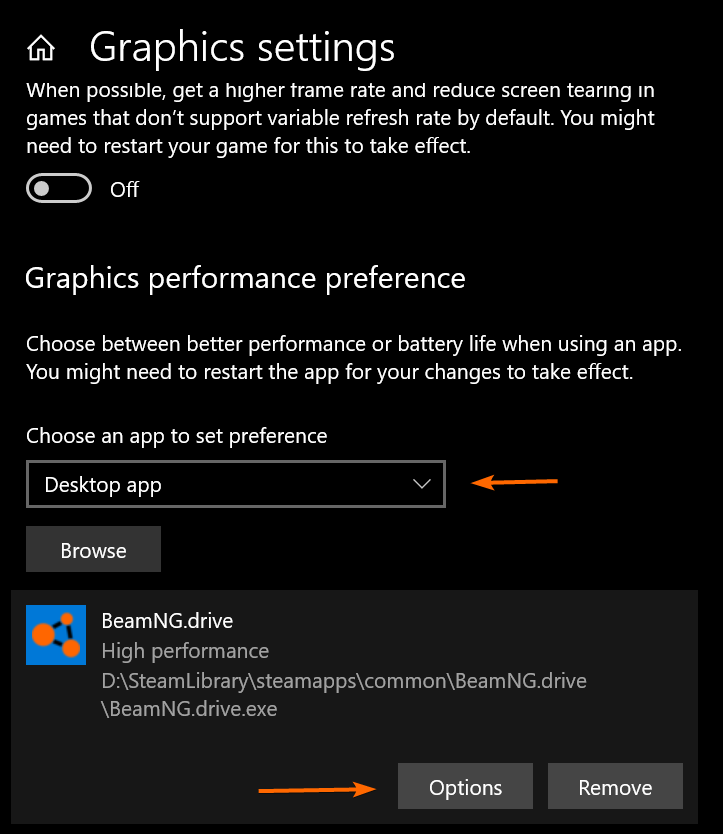
Windows 10
- Navigate to
Settings(Win+I) ->System->Display->Graphics Settings - Go to Graphics Performance Preference, select
Desktop appand click Browse - Find your game folder and select
.exefile - Select the necessary GPU
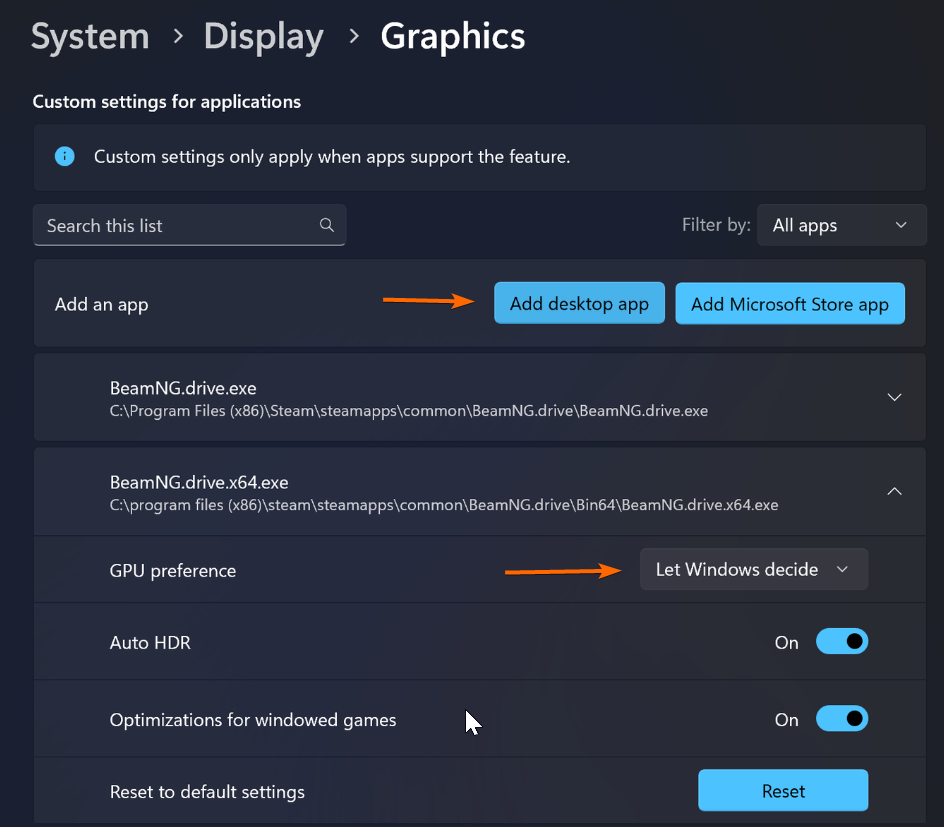
Windows 11
- Navigate to
Settings(Win+I) ->System->Display->Graphics - Go to Custom settings for applications, select
Desktop appand click Browse - Find your game folder and select
.exefile - Select the necessary GPU
Powerplan
In some cases, you may need to setup your powerplan. For example, you may have different settings on when you are charging.
Windows 10
- Navigate to
Settings(Win+I) ->System->Power & Sleep->Additional Power Settings - Set the
High Performancepower plan

Windows 11
- Navigate to
Settings(Win+I) ->System->Power & Battery->Power mode - Set the
Best Performancepower plan

In some cases, you may need to tweak your Battery saver options
The game is still running on the Integrated Graphics
- Please contact manufacturer of your PC for further assistance
Last modified:
December 28, 2018
Was this article helpful?
More in “Low FPS and graphics”
All articles →