How to check supported DirectX version
How to check which DirectX version and feature level your graphics card supports with dxdiag. BeamNG.drive requires feature level 11_0 (DirectX 11).This article is part of Incompatible DirectX.
If you are unsure which DirectX versions are supported by your video card, check following the steps:
- Press Win+R
- Type
dxdiagand press OK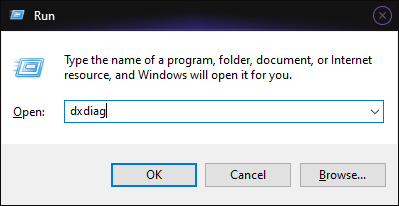
- Under
Displaytab, checkFeature Levelsfield
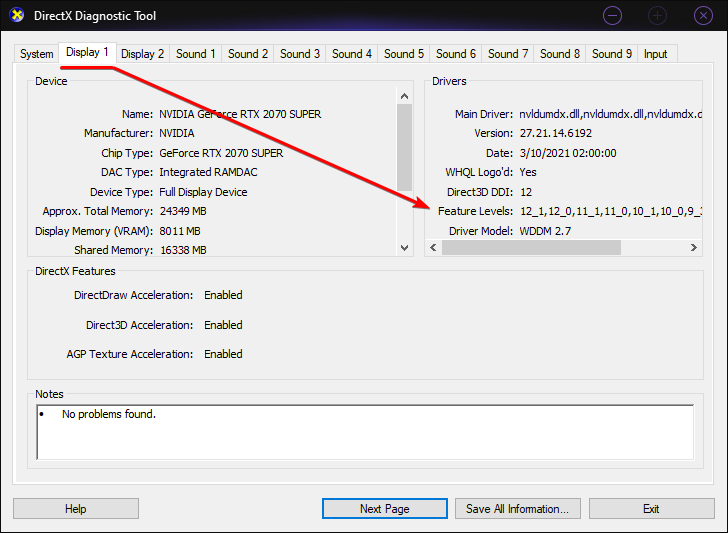
Feature level 11_0 (i.e. DirectX 11) is required to run the current version of the game
Last modified:
October 6, 2026
Was this article helpful?
More in “Game doesn't launch”
All articles →
0xC0000005 / 0x00000001 (access violation)BeamNG.drive crashes or closes with exit code 0xC0000005 STATUS_ACCESS_VIOLATION or 0x00000001? Causes (bugs, drivers, mods, incompatible software) and fixes.
0xC0000135 / 0xC0000139 (missing DLL)Game won't start with 0xC0000135 STATUS_DLL_NOT_FOUND or 0xC0000139 STATUS_ENTRYPOINT_NOT_FOUND? Fix missing DLL, DirectX, Visual C++ or unsupported Windows.
Incompatible DirectXBeamNG.drive says your graphics card doesn't support DirectX 11? What the error means, how to check DirectX, play an old DX9/DX10 version or get a refund.
0xC000012F (integrity error)BeamNG.drive shows an Integrity Error with code 0xC000012F STATUS_INVALID_IMAGE_NOT_MZ? Your game installation is broken: verify game files or reinstall.
0xFFFFFFFF (firewall or antivirus)BeamNG.drive shows a Firewall error with exit code 0xFFFFFFFF? Your antivirus or firewall blocks the game: add the game and user folders to the whitelist.
0xE0000002–0xE0000004 (user folder)Fix 0xE0000002 INVALID_ROOT_PATH, 0xE0000003 INVALID_USER_PATH, 0xE0000004 USER_PATH_UNWRITABLE and 0x3000004 Failed to create user directory.